On this page
Group sessions are times many people attend at once: a weekly class, a workshop, an open gym block. Staff run them in admin → Schedule. The public timetable is /schedule.
Ask your agent to turn groupSessions on. Customer self-booking also needs the portal and groupSessionBooking.
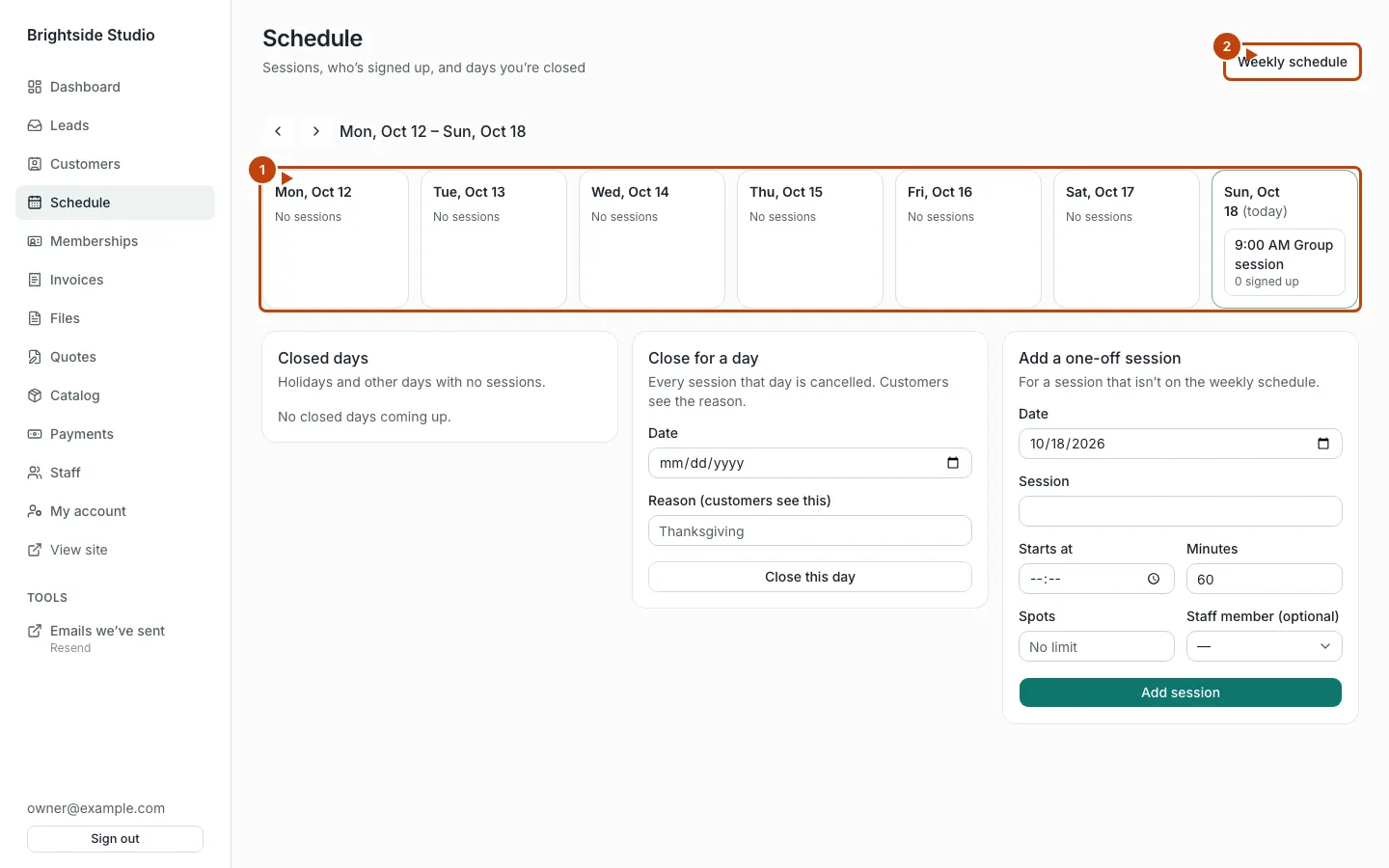
Orange numbers:
- This week’s sessions
- Weekly schedule — repeating slots live here
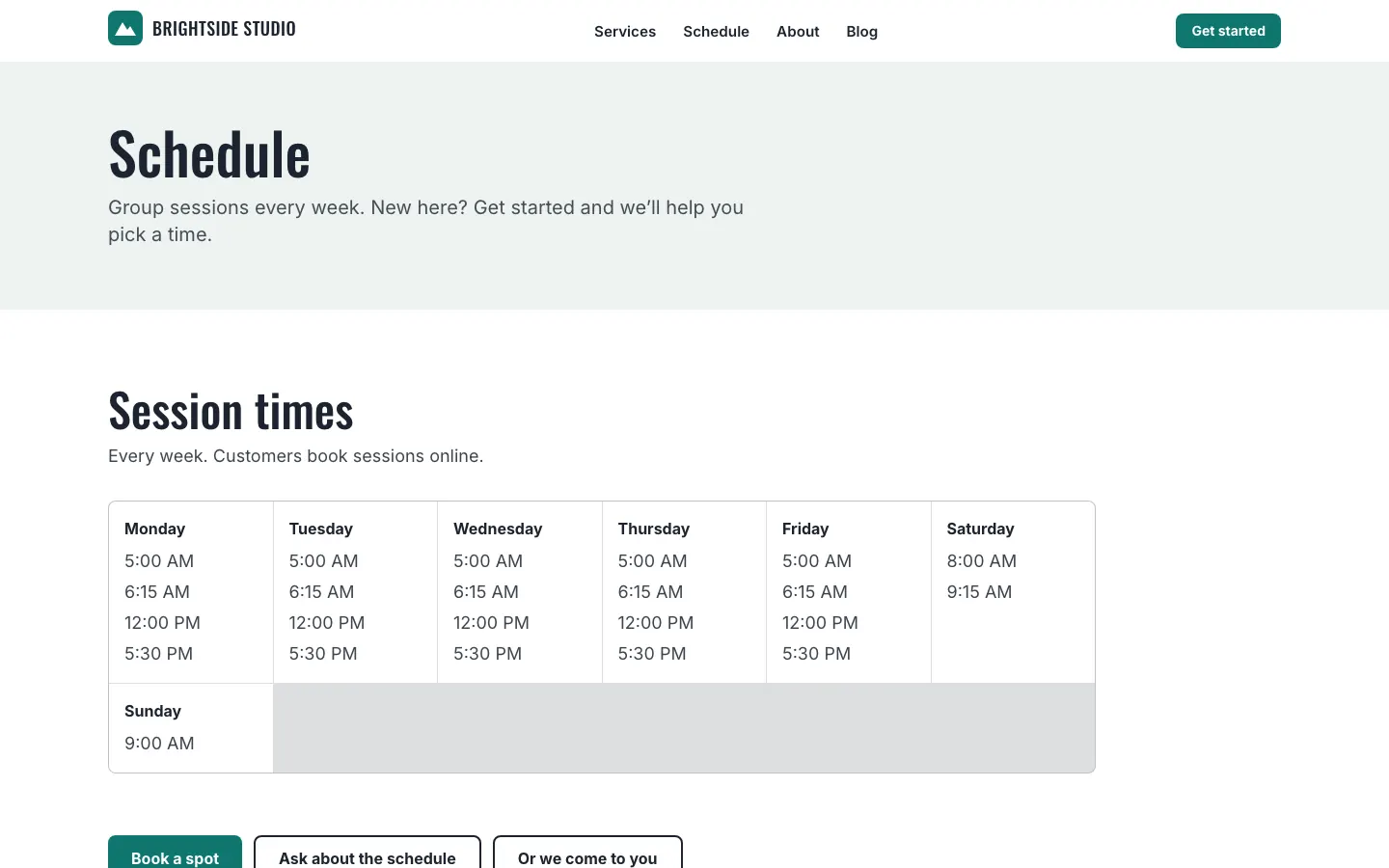
On a phone:
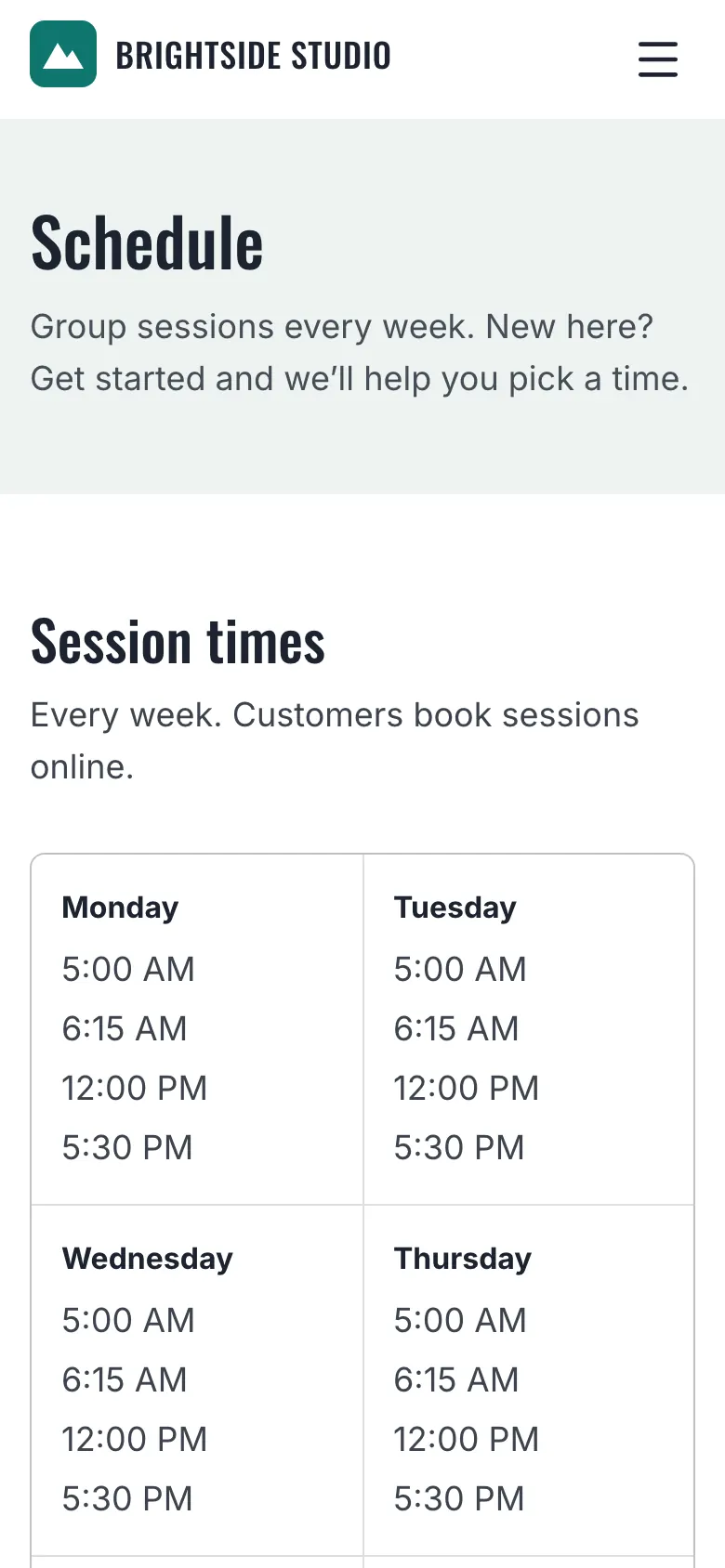
Add a weekly session
Admin → Schedule. Open Weekly schedule (top right). Add the repeating slot there. Your site may say class instead of session.
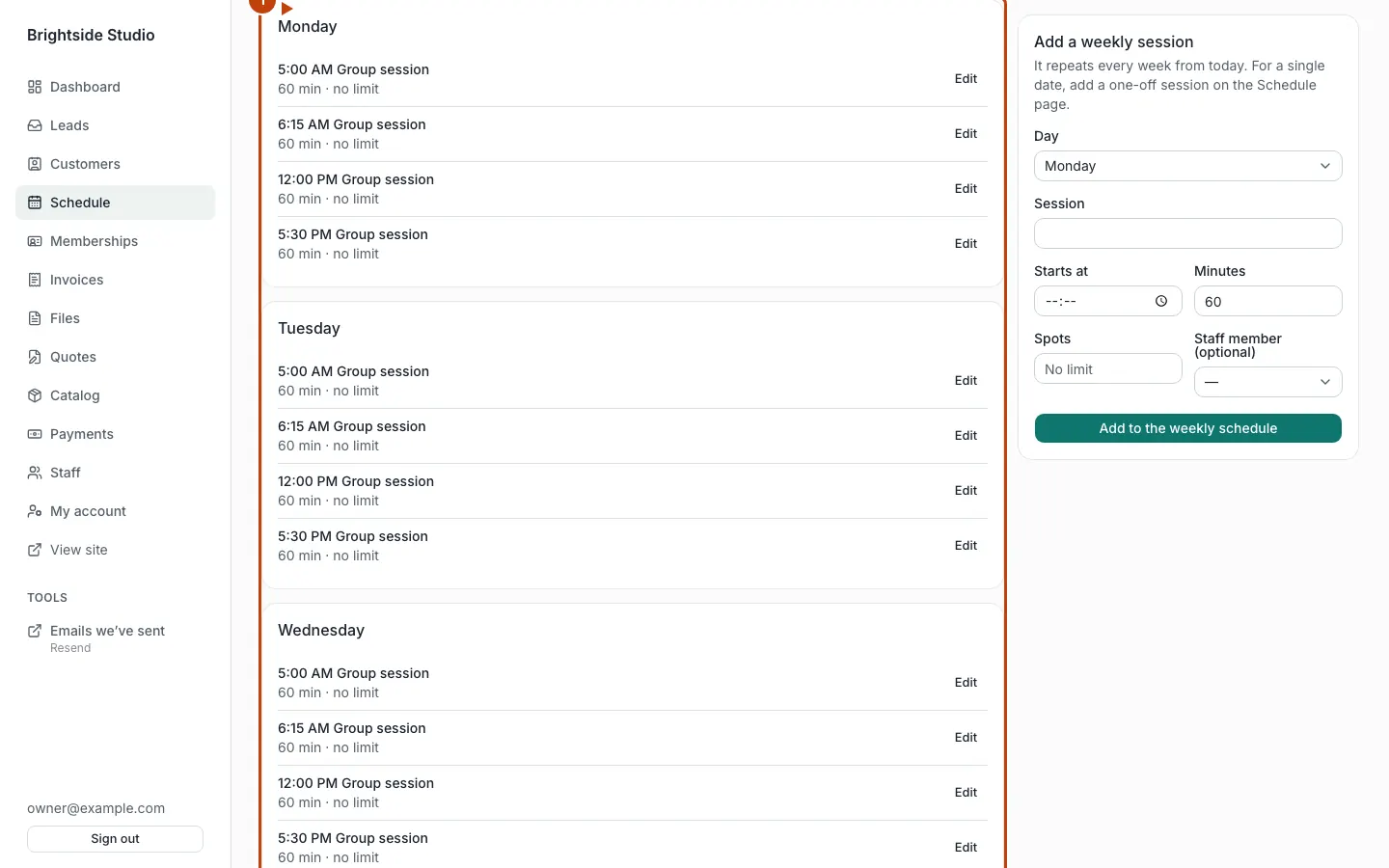
To take a series off the week, remove it from the weekly schedule.
Add a one-off session
From the week view, fill Add a one-off session and press Add session. That is a single date, not a repeating slot.
Close a day
Fill Close for a day, then Close this day. Reopen from Closed days if plans change. No closed days coming up means none are set.
Move weeks with the arrows next to the date range.
Who signed up
Open a session. You will see the roster. Staff can mark They came or No-show, Remove someone, or assign a staff member.
Cancel session takes it off. Put it back on restores it. You can Delete a one-off with an empty roster.
Staff can add a customer even if the session is full or in the past.
Let customers book online
Turn on groupSessionBooking (needs group sessions and the portal). Customers then book at /portal/sessions.
Rules today:
- They can book this many days ahead:
bookAheadDaysin config (default 14). Ask your agent to change it. - Sign-ups close shortly before the session starts. The cutoff is 15 minutes unless someone changes
group_session_settingsin the database. There is no admin screen for that yet. Ask your agent.
If session packs are on, a booking uses one credit. See Session packs.
If booking is off, staff still run the schedule. Customers may see upcoming sessions on the portal home without a book button.
Canonical: https://www.xylosoftware.com/cms/docs/group-sessions